
The Search Screen
As the (huge!) picture above shows, the main screen looks complex and awkward, but it's not really!
The fields are self-explanatory. You can see each record details on the screen. There are two groups of buttons, Manipulation and Navigation. We'll look at Navigation first.
Navigating through the Records

The first button on the left is the "Previous Record" button. This will take you to the record before the one that you are currently on. When you first load up the screen, this button is disabled as you are at the beginning of the records and there is no previous record.
The next button is (obviously!) the "Next Button", which will take you to the next record in the database.
After that, you have the "Add Record" button. This will allow you to add new records details to the database. You begin by typing a number in. This unique record number should be on the sheet from which you are copying the details. It is very important to get this 5-digit number correct, as it has to be the same for both shops. Then click on the Artist text box and fill in the details. It is very important to fill in the details as they appear on your stock update sheet as this makes sure that when you search for a record it is speedy and efficient.
Keep adding the fields thus, paying special attention to the Type field, where you enter a three-letter code to symbolise what type of music it is. Make sure it is in capitals, and if the code doesn't seem to appear on your stock sheet, don't guess! Please ask your manager, as some snotty customers can get very funny if they find that you've put the hard-as-nails Liberator DJ's under handbag.
For album/single, just put a or s or n/a if it isn't actually a record. Any other fields that don't apply for merchandise simply type "None".
Once you have finished adding all the details, click the "Add Record" button again to add another, or click previous record to go back to the other records.
The button with the toilet on is the "Delete Record" button. To use this, go to the record that you want to delete using the Find method or the Navigation buttons. Once you can see the record you want to delete, press the toilet button. The program will ask you if you are really sure. Double check that it is the correct record and click Yes. If it isn't the correct record, click No, find the correct record and repeat the procedure. You shouldn't have to delete records often, and if you have to, always check with your manager first.
To find any record in the database, click on the "Find Record" button. A little box like this will appear:
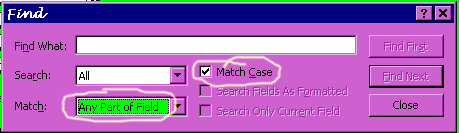
First, click on the little box that says "Match Case" (highlighted with a big wobbly yellow thing here) so that there is a little tick beside it. Then click on the combo box that says "Match:" (highlighted with the other yellow wobbly ellipse) and select "Any part of field". Now your little box should look like the one above (except for the bog wobbly yellow ellipses). To search for a record now, type in whatever you are searching for in the "Find What:" text box. The preferred search is the Record Number, but you can search for anything, such as the name of the artist, the name of the track, the type of music or the format. Any of the fields on screen can be searched, even the ones you don't want to search, because the programs searches all the fields anyway. Click "Find First" to begin and then "Find Next" to see the other results.
Manipulating the Records
In this section, there are two buttons:
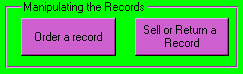
Ordering a Record and Sell or Return a Record both have their own separate pages. You can also reach Order a Record from the Main Menu